🎧 Listen to the 60-Second Audio Recap:
The Privacy Case — Why This Matters
This guide covers OpenWrt TP-Link Deco M4R installation via a TFTP exploit to permanently bypass the locked bootloader and replace the firmware entirely. Why should a hardware manufacturer require you to create a cloud account for a device that never leaves your home? TP-Link calls this “plug and play convenience.” What it actually means is surrendered local control, manufacturer telemetry, and a persistent upsell mechanism pushing you toward a paid HomeShield subscription.
The Deco M4R is capable hardware sitting inside your walls. It should answer to you, not to a server in a data center you have no visibility into. This guide uses a hardware-level exploit to permanently bypass the locked TP-Link bootloader and replace the firmware entirely. The end state is a 100% locally managed network device. Zero cloud dependency. Zero hidden outbound traffic. No account required. Ever.
This is the same philosophy behind every guide on this site. If you are already running Home Assistant on Proxmox or self-hosting your own services, reclaiming your network hardware is the logical next step.
Who Is This Guide For?
| Feature | Stock TP-Link Firmware | OpenWrt Firmware |
|---|---|---|
| Cloud account required | ✅ Mandatory | ❌ None |
| Local web interface | ❌ No | ✅ LuCI |
| Mesh / Roaming | ✅ Automatic | ⚠️ Manual config |
| VLAN support | ❌ No | ✅ Yes |
| Ad-blocking (Pi-hole alt.) | ❌ No | ✅ Yes |
| Privacy | ❌ Manufacturer telemetry | ✅ 100% private |
| Installation difficulty | ✅ Easy | ⚠️ Exploit required |
Community Context: On r/openwrt, users who flash the Deco M4R consistently cite VLAN tagging as their primary motivation. The stock firmware has no VLAN support. For anyone running IoT devices, smart home sensors, or a guest network, that limitation alone is a dealbreaker.
Prerequisites and Minimal Hardware
Hardware Requirements
- TP-Link Deco M4R — Version 1 or Version 2. Both share the same hardware architecture and use identical firmware files.
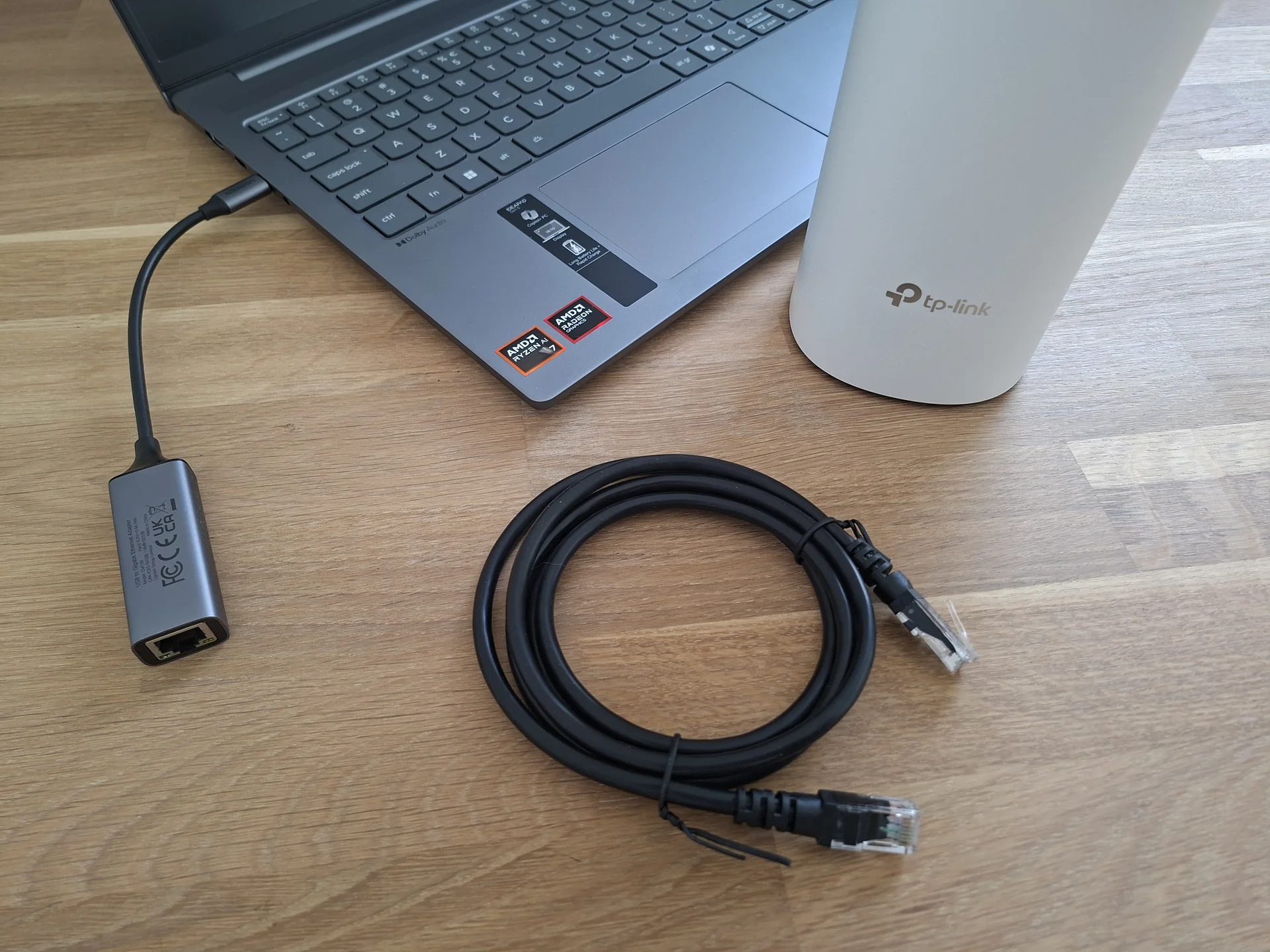
- Windows PC or Laptop — Windows 10 or Windows 11. This guide uses Windows-specific steps for the TFTP server setup.
- UTP Ethernet cable — Direct connection between your PC and the Deco only. No switch in between.
- Paperclip or SIM-eject tool — To hold the recessed reset button on the bottom of the unit.
Required Software Downloads
| File | Purpose | Source |
|---|---|---|
Tftpd64 |
Turns your Windows PC into a temporary TFTP server | pjo2.github.io/tftpd64 |
deco_all_webfailsafe_faux_fw_tftp_v2.bin |
The exploit — tricks the locked TP-Link bootloader into accepting OpenWrt | OpenWrt Forum (developer: naf) |
initramfs-kernel.bin |
Temporary OpenWrt firmware — runs entirely in RAM for the flashing session | OpenWrt Firmware Selector |
sysupgrade.bin |
Permanent OpenWrt firmware — writes to flash storage | OpenWrt Firmware Selector |
Critical Pre-Flight File Check
⚠️ WARNING — Read This Before You Touch the Router
The
initramfsfile you download from the OpenWrt Firmware Selector will have a long version-stamped filename. You must rename it to exactlyinitramfs-kernel.binbefore proceeding. The filename is case-sensitive. No spaces. No version numbers appended. No extra characters of any kind.All four files must live in a single folder on your Desktop.
If the filename is wrong, the TFTP transfer will silently fail. The router will not boot OpenWrt. You will see no error message. Rename the file now.
Method 1 — The Quick Start (Newbie Route): Flash OpenWrt via TFTP Recovery
TP-Link has blocked the normal firmware update path on the Deco M4R. We are going to enter a hidden Recovery Mode through a hardware reset sequence, then use a fake firmware file to trick the bootloader into pulling real OpenWrt from your PC. Follow each step in order. Do not skip ahead.
Step 1 — Isolate Your PC and Configure a Static IP
Your PC needs a fixed, known IP address so the Deco can find it during the TFTP transfer. Disable Windows Firewall completely before proceeding.
- Disconnect your PC from your home network. Unplug any existing Ethernet cables and disable WiFi if applicable.
- Connect your Ethernet cable directly from your PC to the Deco M4R. No switch. No hub. Direct only.
- Open Windows Settings and navigate to Network and Internet → Change adapter options.
- Right-click your Ethernet adapter → Properties → select Internet Protocol Version 4 (TCP/IPv4) → click Properties.
- Select Use the following IP address and enter:
IP Address: 192.168.0.2 Subnet Mask: 255.255.255.0 Gateway: (leave blank) - Click OK to save. Close the adapter properties window.
- Open Windows Defender Firewall (search for it in the Start menu).
- Click Turn Windows Defender Firewall on or off.
- Turn the firewall OFF for both Private networks and Public networks. Click OK.
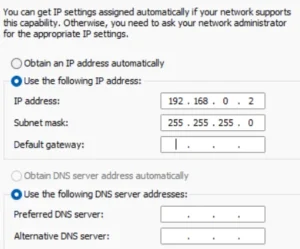
⚠️ WARNING: The firewall must be completely disabled for both network profiles. A partial disable is not sufficient. Windows Firewall blocks the TFTP transfer. If the firewall is active in any profile, the file transfer will silently fail with no error message.
Step 2 — Configure Tftpd64 and Enter Recovery Mode
- Open Tftpd64.
- Click Browse next to “Current Directory” and select the Desktop folder containing all four files.
- In the Server interfaces dropdown, select
192.168.0.2. - Leave Tftpd64 running in the background. Do not close it.
- Unplug the Deco M4R power cable from the wall.
- Insert a paperclip into the recessed RESET hole on the bottom of the unit. Press and hold the button continuously.
- While still holding the reset button, plug the power cable back in.
- Continue holding the reset button for 10 to 15 seconds until the LED on top of the unit goes completely dark.
ℹ️ INFO: The LED going dark confirms the Deco has entered Recovery Mode. You can now release the reset pin. The unit is waiting for a TFTP connection.
Step 3 — Execute the Exploit (The Fake Firmware Injection)
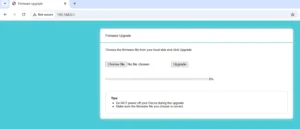
- Open your web browser and navigate to
http://192.168.0.1. - A stripped-down TP-Link firmware update page will appear. This is the Recovery Mode web interface.
- Click the file selection button and choose
deco_all_webfailsafe_faux_fw_tftp_v2.bin. - Click Upgrade.
- The browser will display an “Upgrade Failed” error message.
✅ SUCCESS: “Upgrade Failed” is the expected and correct outcome. Do not click retry. Do not refresh the page. This error message means the exploit worked as intended. The fake firmware has done its job.
- Immediately switch your attention to the Tftpd64 window on your PC. You will see a progress bar appear as the router begins pulling
initramfs-kernel.binfrom your PC via TFTP. - Wait for the transfer to complete. The Deco will reboot automatically. The LED will blink green.
ℹ️ INFO: The router is now running OpenWrt entirely in RAM. This is a temporary state. If power is lost at any point before Step 4 is complete, the router will revert to its original state and you will need to start over from Step 2. Proceed immediately.
Step 4 — Write OpenWrt Permanently to Flash (Sysupgrade)
- Return to your Windows network adapter settings. Set the IPv4 configuration back to Obtain an IP address automatically (DHCP). Click OK.
- Unplug and re-plug your Ethernet cable to force a new DHCP lease from the Deco, which is now running OpenWrt.
- Open your browser and navigate to
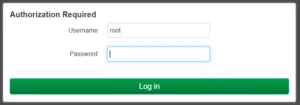
http://192.168.1.1. - The LuCI login screen will appear. Log in without a password.
- Navigate to System → Backup / Flash Firmware.
- Scroll down to the Flash new firmware image section.
- Click Choose File and select
sysupgrade.bin. - Click Flash image.
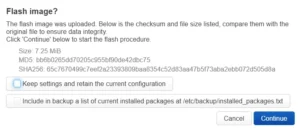
⚠️ CRITICAL WARNING: On the confirmation screen, you will see a checkbox labeled “Keep settings and retain the current configuration.” You must uncheck this box. The RAM-based OpenWrt instance has no valid configuration worth keeping. A clean slate is required. If you leave this checked, you risk writing a corrupt or incomplete configuration to flash.
- Click Continue. The router will write OpenWrt to its flash memory and reboot automatically. This takes approximately 3 minutes. Do not unplug the power during this process.
- OpenWrt is now permanently installed on your Deco M4R.
Method 2 — The Pro Setup: Configure as a Dumb Access Point
Architecture Decision — Why a Dumb AP?
A dumb access point handles WiFi radio duties only. All routing, DHCP address assignment, and firewall logic remain with your main upstream router. This eliminates double-NAT problems that occur when two devices on your network both try to act as routers simultaneously. If you already have a capable main router, this is the correct configuration. The Deco becomes a clean WiFi extension with no routing overhead.
Step 5 — Disable Routing and Assign a Static LAN IP
- Log into LuCI at
http://192.168.1.1with no password. - Navigate to Network → Interfaces.
- Find the LAN interface and click Edit.
- Set the Protocol dropdown to Static address.
- In the IPv4 address field, enter a free IP address within your main router’s subnet, using CIDR notation:
IPv4 Address: 10.10.10.252/24
ℹ️ INFO: The
/24suffix is mandatory in modern OpenWrt versions. It replaces the legacy separate Subnet Mask field (255.255.255.0). If you enter the IP without the/24, OpenWrt will not apply the correct subnet mask. Adjust the IP range to match your own network. If your main router is at192.168.1.1, use something like192.168.1.252/24.
- In the IPv4 gateway field, enter the IP address of your main router (for example,
10.10.10.1). - In the Custom DNS servers field, enter the same IP address of your main router.
- Click the DHCP Server tab at the top of the interface edit panel.
- Check the box labeled Ignore interface.
⚠️ WARNING: Failing to disable the DHCP server on the Deco will cause IP address conflicts on your network. Both your main router and the Deco will hand out IP addresses, and devices will receive unpredictable assignments. Always disable DHCP when configuring a dumb AP.
- Return to the General Settings tab. Find the Firewall zone field and set it to unspecified (leave it blank).
- Click Save and Apply.
Step 6 — Enable and Configure WiFi Radios
- Navigate to Network → Wireless.
- You will see two radio interfaces listed: one for 2.4GHz and one for 5GHz. Click Enable on each one.
- For each radio, click Edit and configure the following under the Interface Configuration section:
SSID: YourNetworkName Encryption: WPA2-PSK Password: YourStrongPassword - Click Save and Apply after configuring each radio.
- Connect the Deco M4R’s LAN port to a LAN port on your main router using an Ethernet cable. Do not use the WAN port on the Deco.
Step 7 — Advanced Extensions (Pro Only)
The dumb AP is fully functional at this point. These are the logical next extensions for users who want to go further.
- Bufferbloat management: Install
luci-app-sqmvia System → Software. SQM (Smart Queue Management) eliminates the latency spikes that occur when your connection is saturated. Critical for gaming and video conferencing. - IoT VLAN isolation: Configure a guest VLAN to place smart home devices on a separate network segment, completely isolated from your personal computers and NAS. This is the feature that drives most users to flash OpenWrt in the first place.
- Network-wide ad blocking: Install the
adblockpackage as a Pi-hole alternative. DNS-based blocking at the router level covers every device on your network without any per-device configuration. - SSH hardening: Disable password-based SSH authentication and deploy key-based authentication instead:
ssh-copy-id [email protected]
Configuration and Validation — Confirm Everything Works
Post-Flash Validation Checklist
Work through this list top to bottom before considering the installation complete.
- ☐ Browser reaches
http://192.168.1.1(or your new static IP) without error - ☐ LuCI dashboard loads and displays the OpenWrt version number
- ☐ Both WiFi radios are visible under Network → Wireless
- ☐ Your SSID broadcasts and accepts a WPA2 connection from a test device
- ☐ The test device receives an IP address from your main router, not from the Deco — this confirms DHCP is correctly disabled
- ☐
ping 8.8.8.8succeeds from the test device — this confirms upstream routing through your main router is intact - ☐ No TP-Link domains appear in your DNS query logs — this confirms the cloud connection is severed
Verify Zero TP-Link Outbound Traffic
If you want hard confirmation that the Deco is no longer phoning home, SSH into the device and run a packet capture. This requires the tcpdump package to be installed (System → Software → search tcpdump).
ssh [email protected]
tcpdump -i br-lan host tplinkcloud.com
ℹ️ INFO: Zero output from this command means zero traffic to TP-Link’s cloud infrastructure. The connection is permanently severed. Let it run for 60 seconds to be certain.
The Honest Truth — Quirks, Limitations and Real Caveats
What You Lose by Leaving Stock Firmware
Here is what you give up.
- Automatic mesh roaming: If you own multiple Deco units, seamless automatic roaming between them is gone. You can replicate this behavior in OpenWrt using 802.11r Fast BSS Transition and 802.11k neighbor reports, but it requires manual configuration.
- Smartphone app management: The TP-Link Deco app no longer works. All management is done through the browser-based LuCI interface. For most self-hosters, this is an upgrade, not a downgrade.
- One-tap firmware updates: OpenWrt updates are a manual process. You download the new sysupgrade file and flash it through LuCI. It takes about five minutes.
- HomeShield features: Entirely absent. HomeShield is a paid subscription service built on cloud dependency. Its removal is not a loss.
OpenWrt-Specific Limitations on This Hardware
- LuCI may not be pre-installed: Some builds from the OpenWrt Firmware Selector ship without LuCI. If you reach
http://192.168.1.1after flashing and see nothing, SSH access is still available. Install LuCI via:opkg update && opkg install luci. - Reverting to stock firmware is possible but unsupported: You can reverse the process using the TFTP method with the original TP-Link firmware file. However, TP-Link provides no official support path for this scenario. Proceed with the understanding that OpenWrt is your new permanent firmware.
- Hardware version verification is mandatory: V1 and V2 share the same architecture and firmware files, but always verify the output of the OpenWrt Firmware Selector against the exact hardware revision printed on the label of your unit before flashing.
Troubleshooting Common Errors
Error: 192.168.0.2 Does Not Appear in the Tftpd64 Interface Dropdown
Cause: Windows has not yet registered the static IP assignment, or the Deco has no power and the Ethernet link is down.
Fix:
- Confirm the Deco is powered on and the Ethernet cable is seated at both ends before opening Tftpd64.
- Close Tftpd64 completely, set the static IP in Windows, then reopen Tftpd64. The interface will appear in the dropdown once Windows registers the active link.
Error: “Upgrade Failed” Appears but Tftpd64 Shows No Activity
Cause 1: Windows Defender Firewall is still active and blocking the TFTP transfer.
Fix 1: Return to Windows Defender Firewall settings and confirm it is disabled for both Private and Public network profiles. A partial disable is not sufficient.
Cause 2: The initramfs file was not renamed exactly to initramfs-kernel.bin.
Fix 2: Check the filename character by character. No version suffix. No capitalization variation. No spaces. Rename it and retry from Step 2.
Error: Cannot Access LuCI After Completing the Dumb AP Configuration
Cause: You changed the Deco’s IP address in Step 5. It no longer responds at 192.168.1.1.
Fix: Use the new static IP you assigned.
New admin URL: http://10.10.10.252
(substitute whatever static IP you assigned in Step 5)
Bookmark this address immediately after completing the configuration.
Error: Connected to WiFi but No Internet Access
Cause: The Ethernet cable is plugged into the Deco’s WAN port instead of a LAN port, or the IPv4 Gateway value entered in Step 5 does not match your main router’s actual IP address.
Fix: Physically verify the cable is in a LAN port on the Deco. Then log into LuCI, navigate to Network → Interfaces → LAN → Edit, and confirm the IPv4 Gateway field contains the correct IP of your main router.
Conclusion and Next Steps
Mission Completion Checklist
- ☑ Windows isolated and Tftpd64 configured as a TFTP server
- ☑ Deco forced into TFTP Recovery Mode via the reset pin
- ☑ TP-Link bootloader bypassed using the naf exploit
- ☑ OpenWrt permanently flashed via sysupgrade
- ☑ DHCP disabled and configured as a clean dumb access point
- ☑ Both WiFi radios active with WPA2-PSK encryption
- ☑ Zero TP-Link cloud traffic confirmed
Your TP-Link Deco M4R is no longer a cloud-dependent consumer appliance. It is a locally managed network device that answers only to you.
Recommended Next Steps
A clean OpenWrt installation is a foundation, not a finish line.
- Eliminate bufferbloat: Install
luci-app-sqmvia System → Software. This is the highest-impact change for gaming and video call quality on a home network. - Isolate your IoT devices: Configure a dedicated VLAN for smart home hardware. Keep your light bulbs and thermostats on a completely separate network segment from your personal computers and NAS. If you are already running local Zigbee sensors with Home Assistant, this is the natural next layer of network hygiene.
- Network-wide ad and tracker blocking: Install the
adblockpackage. DNS-based blocking at the router level covers every device on your network without a separate Pi-hole machine. - WireGuard VPN: Install the
wireguard-toolsandluci-app-wireguardpackages to route all traffic through a VPN tunnel you control. - Multi-unit roaming: If you own more than one Deco unit running OpenWrt, configure 802.11r Fast BSS Transition to restore seamless roaming between access points.
Community Resources
- OpenWrt Wiki: TP-Link Deco M4R device page — hardware specifications, known issues, and community notes
- r/openwrt on Reddit — active community for hardware-specific questions and configuration help
- OpenWrt Firmware Selector — always verify you are downloading the correct build for your exact hardware revision before flashing









