🎧 Listen to the 60-Second Audio Recap:
Important Update: If your existing Matrix server is lagging or crashing due to high user load, it is time to ditch SQLite. Read our new guide on Migrating Matrix Synapse to PostgreSQL for a production-ready setup.
This guide covers a complete Matrix Synapse SQLite Docker deployment with Cloudflare Tunnels. You are handing your private conversations to corporations every day. WhatsApp logs metadata. Discord profiles your behavior. Telegram’s encryption is optional and off by default in group chats. Every message you send on these platforms feeds a data machine you have zero control over.
Matrix Synapse is the self-hosted, open-source alternative. It puts your conversation history, your media, and your database on your own hardware. This guide pairs it with SQLite for simplicity and Cloudflare Tunnels for secure, zero-port-forward access from anywhere.
One-sentence scope: This guide gets a working Synapse instance live in under 30 minutes, with zero open router ports.
Why Self-Host Matrix Instead of Using WhatsApp, Telegram, or Discord?
| Feature | Big Tech (WhatsApp / Discord) | Self-Hosted Matrix (This Guide) |
|---|---|---|
| Message content access | Varies (often readable server-side) | E2EE by default in direct messages |
| Metadata harvesting | Yes — who, when, how often | No third party involved |
| Ad profiling | Yes | None |
| Data location | Corporate data centers | Your own hardware |
| Account termination risk | Platform can ban you at will | You own the server |
| IP exposure | Known to provider | Hidden behind Cloudflare Tunnel |
- Your chat history lives on your hardware, not in a data center in Virginia.
- The SQLite database is a single local file. You can open it, inspect it, back it up, and delete it. It is fully auditable and fully yours.
- Cloudflare Tunnel hides your home IP from the public internet.
- Matrix is decentralized by design. There is no single point of corporate failure, no policy change that can shut down your server overnight.
A note on the Cloudflare privacy question: Cloudflare does NOT see your message content. Matrix uses end-to-end encryption, so message payloads are opaque to any intermediary. What Cloudflare DOES see is connection metadata: timestamps, client IP addresses, and the subdomain being accessed. Using a Cloudflare Tunnel is a deliberate trade-off. You get a free, zero-configuration secure ingress with no open ports. You accept that Cloudflare sees your traffic envelope, not your messages. For a family server or small private group, this is a reasonable and well-understood compromise.
Prerequisites & Minimal Hardware
Hardware Requirements
| Component | Minimum | Recommended |
|---|---|---|
| vCores / CPU | 2 | 4 |
| RAM | 2 GB | 4 GB |
| Storage type | SSD | NVMe |
| Platform | Proxmox LXC or physical server | Same |
SQLite write performance degrades noticeably on spinning hard drives. Use SSD or NVMe for the directory that holds your Synapse data. If you are running Proxmox and need guidance on storage architecture, see our guide on Self-Hosted Google Drive: Installing Nextcloud in Docker on Proxmox with Split NVMe + HDD Storage.
Software & Account Requirements
- Docker installed and running. Verify with
docker --version. - Portainer installed and accessible on your local network.
- A domain name (e.g.,
yourdomain.com) with nameservers pointed to Cloudflare. - A Cloudflare account with Zero Trust enabled. The free tier is sufficient for this entire guide.
- Zero open ports in your router. No port 80, no port 443, no port 8448. This is non-negotiable for this setup. The Cloudflare Tunnel handles all inbound traffic.
If you do not yet have Docker and Portainer running, start with our foundational guide: Build Your Privacy Machine Room: Docker + Portainer on Proxmox LXC.
What You Do NOT Need
- A static IP address.
- A reverse proxy such as Nginx or Traefik. The Cloudflare Tunnel replaces this entirely. The tunnel IS the ingress.
- SSL certificate management. Cloudflare provisions and renews certificates automatically for your subdomain.
A common question: do you still need a reverse proxy when using Cloudflare Tunnels? No. The tunnel terminates TLS at Cloudflare’s edge and forwards plain HTTP to your container internally. You do not need Nginx, Traefik, or Caddy for this setup.
Method 1: Matrix Synapse SQLite Docker — Quick Start (Newbie Route)
Every step below is explicit. Have Portainer open in one browser tab and this guide in another. Follow the steps in order. Do not skip the init step.
Step 1: Create the Cloudflare Tunnel Public Hostname
Do this first. The tunnel needs to exist before your container starts receiving traffic.
- Log in to the Cloudflare Dashboard.
- Navigate to Zero Trust in the left sidebar.
- Go to Networks → Tunnels.
- Click Create a tunnel.
- Select Cloudflared as the connector type and click Next.
- Name your tunnel
synapseand save it. - Follow the on-screen instructions to install the Cloudflare connector on your Docker host. The dashboard provides a one-line install command.
- Once the connector shows as Connected, navigate to the Public Hostname tab.
- Click Add a public hostname and enter the following values:
| Field | Value |
|---|---|
| Subdomain | chat |
| Domain | yourdomain.com |
| Type | HTTP |
| URL | [YOUR-DOCKER-HOST-IP]:8008 |
Use HTTP, not HTTPS. Cloudflare handles TLS termination at its edge. Your container only needs to speak plain HTTP internally.
Save the hostname. Your tunnel is now configured and waiting.
Step 2: Create the Local Data Directory
This directory is where Synapse stores everything: its configuration file, its signing keys, and the SQLite database. Run this command on your Docker host:
mkdir -p /mnt/snelle_data/App_Data/synapseVerify the directory exists and is writable by the Docker process. If you are running Docker as root (the default in most Portainer setups), no additional permission changes are needed.
Step 3: Generate the Base Configuration (Init Stack)
Synapse requires a homeserver.yaml configuration file and a cryptographic signing key before it can start. Run a temporary one-off container to generate these automatically.
In Portainer, navigate to Stacks → Add Stack. Name it synapse-init and paste the following compose definition:
version: "3.9"
services:
  synapse_init:
    image: matrixdotorg/synapse:latest
    container_name: synapse_init
    environment:
      - SYNAPSE_SERVER_NAME=chat.yourdomain.com
      - SYNAPSE_REPORT_STATS=no
    volumes:
      - /mnt/snelle_data/App_Data/synapse:/data
    command: generate
Replace chat.yourdomain.com with your actual subdomain and domain.
Click Deploy the stack. Watch the container logs in Portainer. The container will run, generate the files, and exit automatically. This is expected behavior.
Validate the output:
ls -la /mnt/snelle_data/App_Data/synapse/You should see at minimum:
homeserver.yaml- A file ending in
.signing.key - A
log.configfile
Warning: Do not skip this step. Deploying the production stack without these generated files will cause an immediate crash loop. Synapse cannot start without its configuration and signing key.
Step 4: Deploy the Live Synapse Stack (SQLite)
With the configuration files in place, deploy the persistent Synapse server. In Portainer, either remove the init stack or create a new stack named synapse. Paste the following:
version: "3.9"
services:
  synapse:
    image: matrixdotorg/synapse:latest
    container_name: synapse
    restart: unless-stopped
    ports:
      - 8008:8008
    volumes:
      - /mnt/snelle_data/App_Data/synapse:/data
Click Deploy the stack.
Open the container logs in Portainer. Watch for this line, which confirms Synapse has started successfully:
Synapse now listening on TCP port 8008If you see this line, your server is running. Move to Step 5.
Step 5: Register Your First Admin User
Create your admin account using a CLI method that bypasses open registration entirely. You never need to enable public sign-ups on your server.
- In Portainer, navigate to Containers.
- Click on the
synapsecontainer. - Click the Console icon (the
>_symbol). - Click Connect. A terminal session opens inside the running container.
- Run the following command:
register_new_matrix_user -c /data/homeserver.yaml http://localhost:8008The tool will prompt you through the following:
- New user localpart: Choose your admin username (e.g.,
admin). - Password: Use a strong, unique password.
- Make admin: Type
yes.
Your admin account is now created. enable_registration is set to false by default in the generated homeserver.yaml. Leave it that way. Add new users via this same CLI method to keep your server closed to the public.
Method 2: The Pro Setup (PostgreSQL + .well-known + Performance Tuning)
This section is a deliberate preview. The SQLite setup above is sufficient for a family group or small private circle. When you outgrow it, there is a clear upgrade path.
When to Upgrade Beyond SQLite
SQLite processes one write operation at a time. For a small server on a quiet day, this is fine. Under load — multiple concurrent users, large federated rooms, high event volume — the single-writer lock becomes a bottleneck.
Consider upgrading when:
- You have more than roughly 10 concurrent active users.
- You join large public Matrix rooms. These generate high volumes of state events that expose SQLite’s single-writer limitation.
- You want to run a public-facing homeserver that federates with the wider Matrix network.
- The server feels sluggish during peak usage hours.
What Part 2 Covers
- Replacing SQLite with PostgreSQL 15 in a separate Docker container, with a full data migration path.
- Configuring
.well-knownclient and server discovery endpoints so users do not need to manually enter your homeserver URL. - Synapse worker processes for horizontal scaling.
- Media repository configuration and upload size limits.
- Federation port (8448) setup via Cloudflare Tunnel.
Part 2 covers the full PostgreSQL migration and Element client discovery — read it here: Matrix Synapse Part 2: Migrate to PostgreSQL & Enable Element Client Discovery.
Configuration & Validation: How to Test Your Running Server
Web Validation Check
Open a browser and navigate to:
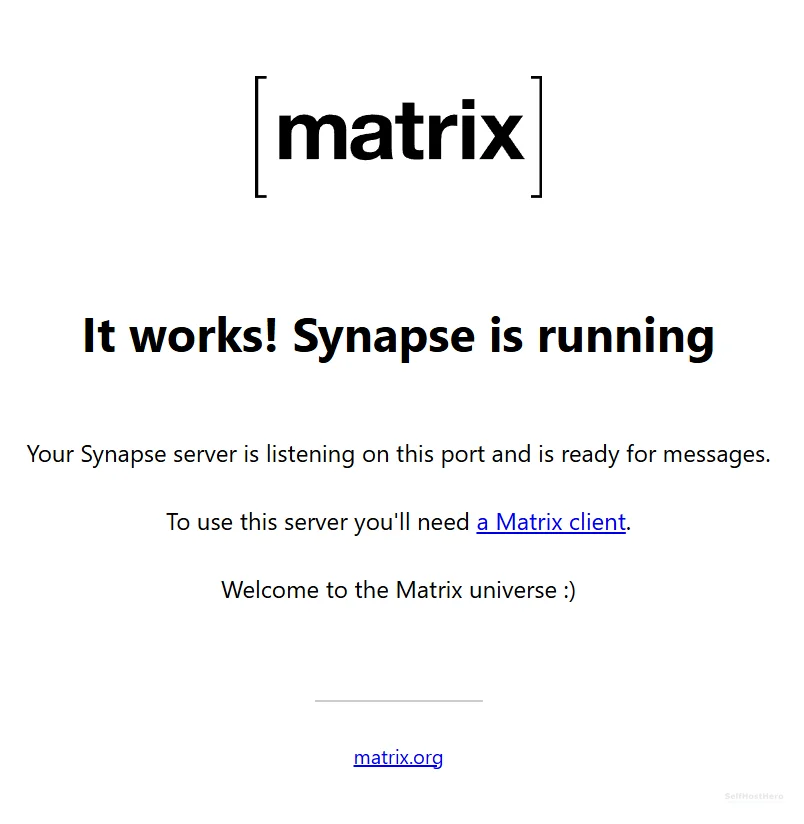
https://chat.yourdomain.comYou should see a plain page displaying:
It works! Synapse is runningIf you see this, your Cloudflare Tunnel is routing traffic correctly to your container. The server is reachable from the public internet with no open ports on your router.
Element App Login Check
- Open Element Web at
app.element.ioor install Element Desktop. - Click Sign In.
- Click Edit next to the homeserver URL field.
- Enter:
https://chat.yourdomain.com - Log in with the admin username and password you created in Step 5.
Expected result: Successful login, an empty room list, and your admin account confirmed.
Matrix Federation Tester (Optional but Recommended)
Check your server’s federation status at https://federationtester.matrix.org/. Enter your server name (chat.yourdomain.com) and run the test.
At this stage, federation will NOT pass. This is expected. You have not configured port 8448 or the .well-known server discovery file. For a private family server, this is completely acceptable. Federation setup is covered in Part 2.
The Honest Limitations of This Setup
Every tool has trade-offs. Here are the ones you need to know before you invite anyone onto this server.
SQLite Is a Single-Writer Bottleneck
SQLite is a file-based database designed for local, low-concurrency data storage. When multiple users are active simultaneously, or when Synapse is processing a flood of events from a large federated room, all write operations queue behind a single lock. One write at a time. For a family of five, you will not notice this. For 50 users in active rooms, you will.
This is a deliberate starting point, not a flaw in the guide. The migration path to PostgreSQL is well-documented and covered in Part 2.
Element App UX Is Not Simple for Non-Technical Users
When you invite a non-technical user to your server, they will open Element, see a homeserver URL field, and have no idea what to type. There is no auto-discovery in this basic setup because the .well-known endpoint is not yet configured.
The immediate workaround is a pre-filled login link. Element supports deep links that pre-populate the homeserver URL:
https://app.element.io/#/login?hs_url=https://chat.yourdomain.comSend this link to your users. When they click it, Element opens with your homeserver URL already filled in. They enter their username and password and are done.
The permanent fix is the .well-known configuration covered in Part 2.
Cloudflare Sees Your Domain Metadata (Honest Trade-Off)
Cloudflare does NOT see: Your message content. Matrix end-to-end encryption means message payloads are encrypted before they leave your device. Cloudflare is a TLS termination point. It sees encrypted HTTP requests, not readable chat.
Cloudflare DOES see: Connection timestamps, the IP addresses of clients connecting to your server, and the subdomain being accessed.
That is the trade-off. You get a free, zero-configuration, zero-port-forward secure tunnel. In exchange, Cloudflare has visibility into your connection metadata. For most private and family use cases, this is a reasonable and well-understood compromise. If your threat model requires that no third party sees any metadata, you need a VPS with a public IP and a direct TLS setup. That is a different guide for a different audience.
Troubleshooting Common Errors
Error: “404 Unrecognized Request” or .well-known Not Available
Symptom: You see this error in your browser, in the Element app, or in the Synapse container logs.
Root cause: The basic SQLite setup does not serve .well-known discovery files by default. Synapse does not include a web server for this purpose out of the box.
Fix: This is not a breaking error for basic usage. Your server is still fully functional.
- In Element, click Edit on the login screen and manually enter
https://chat.yourdomain.com. - Send users the pre-filled deep link described in the limitations section above.
- The permanent fix (serving
.well-knownvia Nginx or Cloudflare Workers) is covered in Part 2.
Error: SSL_VERSION_OR_CIPHER_MISMATCH in Browser
Symptom: Your browser shows an SSL error immediately after you create the Cloudflare tunnel and try to visit your subdomain.
Root cause: Cloudflare needs time to provision a TLS certificate for a new subdomain. This is a propagation delay, not a configuration error.
Fix: Wait 10 minutes. Do not change any settings. Refresh the browser.
If the error persists after 15 minutes: Go to your Cloudflare dashboard → SSL/TLS → Overview. Verify your SSL/TLS encryption mode is set to Flexible or Full. Do not use Full (Strict) for this setup, as your container is serving plain HTTP internally.
Error: Container Crash Loop / Exits Immediately
Symptom: The Synapse container shows a status of “Exited” in Portainer within seconds of being deployed.
Root cause: The most common cause is deploying the production stack before the init stack completed successfully. Synapse cannot start without its configuration files.
Fix: Run the following command on your Docker host to verify the required files exist:
ls -la /mnt/snelle_data/App_Data/synapse/You must see homeserver.yaml and a .signing.key file before deploying the production stack. If these files are missing, re-run the init stack from Step 3.
If the files exist but the container still crashes, open the Portainer logs for the container and look for a Python traceback. The traceback will identify exactly which line of homeserver.yaml is causing the problem.
Error: Cannot Connect from Element / “Homeserver Not Found”
Symptom: Element reports it cannot reach your homeserver after you enter the URL.
Work through this checklist in order:
- Is the Synapse container running? Check Portainer. The status indicator should be green.
- Is the Cloudflare Tunnel connector running? Go to Zero Trust → Networks → Tunnels. The tunnel status should show Healthy.
- Is the public hostname URL set to the correct Docker host IP and port 8008? Double-check the value in the Cloudflare tunnel configuration.
- Did you use
HTTP(not HTTPS) as the tunnel service type? Cloudflare handles TLS. Your container only speaks HTTP internally.
Conclusion & Next Steps
What You Have Built
- Matrix Synapse running in Docker with automatic restart on failure or reboot.
- SQLite database — local, private, zero cloud dependency.
- Zero open router ports — Cloudflare Zero Trust tunnel handles all inbound traffic.
- First admin account registered via secure CLI method, with public registration disabled.
- Server validated via browser check and Element app login.
You now own your communications infrastructure. No algorithm decides what you see. No platform can ban your account. No corporation harvests your metadata for advertising.
Immediate Next Actions
- Share the Element deep-link with your family or friends so they can connect without friction.
- Create your first room in Element and send a test message to confirm end-to-end encryption is active.
- Open
/mnt/snelle_data/App_Data/synapse/homeserver.yamlin a text editor and review themax_upload_sizesetting. The default is 50 MB. Adjust it to match your available storage:
# In homeserver.yaml
max_upload_size: 100M
After editing homeserver.yaml, restart the Synapse container in Portainer for the change to take effect.
When You Outgrow This Setup
Watch for these signals that it is time to migrate to PostgreSQL:
- The server feels sluggish during peak usage hours.
- You want to open federation to the wider Matrix network.
- Your active concurrent user count exceeds 10 to 15 people.
- You start joining large public Matrix rooms.
A note for readers looking for an all-in-one Docker Compose file that includes PostgreSQL, Nginx, and Synapse in a single stack: those exist and they work. This guide deliberately separates concerns into stages. A monolithic compose file is harder to debug, harder to explain step by step, and harder to upgrade incrementally. Starting with SQLite and migrating to PostgreSQL when needed is a cleaner learning path and a more maintainable production setup.
Part 2 covers the full PostgreSQL migration, .well-known discovery, and federation setup. Read it here: Matrix Synapse Part 2: Migrate to PostgreSQL.









