🎧 Listen to the 60-Second Audio Recap:
What Is Netboot.xyz and Why Should You Care?
Netboot.xyz is a PXE boot server that serves operating system installers over your local network via a single bootable menu. You can boot multiple systems without physical media like USB drives. The homelab community uses it heavily for network-based OS deployment.
The Privacy Lens — Why Self-Host This?
Self-hosting eliminates dependency on proprietary tools like Rufus or Ventoy. What you get:
- Full local control over which OS images are served
- Custom images and ISOs never leave your network
- No outbound calls to external infrastructure during OS deployment
- Eliminates single-use USB drives as a security and logistics concern
Prerequisites & Minimal Hardware
Hardware Requirements (Genuinely Minimal)
This is one of the lightest self-hosted services you can run:
| Specification | Requirement |
|---|---|
| CPU | 2 cores minimum |
| RAM | A few hundred MB (container idles well under that) |
| Storage | Minimal for config; scales with how many ISOs you self-host |
| Network | Wired Ethernet strongly recommended for PXE reliability |
Software Requirements
- Docker and Docker Compose installed on your host machine
- Portainer (optional but recommended for the Newbie route)
Networking Prerequisite Check
# Verify Docker is running
docker --version
docker compose version
Use the correct image source. The LinuxServer.io image is deprecated. Always use ghcr.io/netbootxyz/netbootxyz:latest — this resolves a top complaint missed by older guides.
Method 1 — The Quick Start (Newbie Nora Route)
Overview of This Method
Deploy via a Portainer stack. No CLI required beyond initial Docker setup. Fastest path from zero to a working PXE boot menu.
Step 1 — Prepare Your Directory Structure
OperatingSystems not Operating Systems. Spaces break web-served URLs and will silently prevent ISO loading.
mkdir -p /path/to/config
mkdir -p /path/to/OperatingSystems
Step 2 — Deploy the Portainer Stack
Navigate to Portainer → Stacks → Add Stack. Paste the following YAML.
version: "3.9"
services:
  netbootxyz:
    image: ghcr.io/netbootxyz/netbootxyz:latest
    container_name: netbootxyz
    environment:
      - TZ=Europe/Amsterdam
    volumes:
      - /path/to/config:/config
      - /path/to/OperatingSystems:/assets
    ports:
      - 3005:3000
      - 69:69/udp
      - 8088:80
    restart: unless-stopped
Step 3 — Verify the Container Is Running
docker ps | grep netbootxyz
Confirm the container shows Up status. Access the web dashboard at http://[YOUR-HOST-IP]:3005.
Method 2 — The Pro Setup (Pro Paul Route)
Overview of This Method
Extends the base deployment with ZFS-backed asset storage and full OPNsense DHCP configuration for automated PXE boot delivery.
Step 1 — Mount Assets on a ZFS Pool
Store ISO assets on a dedicated ZFS dataset for data integrity, compression, and snapshot capability.
# Create a ZFS dataset for netboot assets (no spaces in path)
zfs create tank/netboot/OperatingSystems

# Verify mount point
zfs list tank/netboot/OperatingSystems
/assets volume.Step 2 — Update Docker Compose Volume Binding
volumes:
  - /tank/netboot/config:/config
  - /tank/netboot/OperatingSystems:/assets
Step 3 — Configure OPNsense for PXE Boot Delivery
This is the step most guides skip or under-explain. Follow these OPNsense DHCP LAN settings precisely.
- Navigate to:
Services → DHCPv4 → [LAN interface] - Scroll to the Network Booting section and enable it
- Next Server (Option 66): Enter the static IP of your Docker host running Netboot.xyz
- Bootfile Name (Option 67): Enter
netboot.xyz.efi(for UEFI clients) ornetboot.xyz.kpxe(for legacy BIOS clients) - Save and apply changes
Step 4 — Serve a Custom ISO (Manual iPXE Scripting)
Netboot.xyz does NOT auto-scan your /assets directory. Each custom ISO requires a manually written iPXE script linked in the dashboard.
#!ipxe
set base-url http://[YOUR-HOST-IP]:8088
kernel ${base-url}/OperatingSystems/proxmox-ve_8.x.iso
boot
Reference community-validated iPXE menu files as a starting point for OS-specific boot scripts.
Configuration & Validation — Prove It Works
Browser Dashboard Check
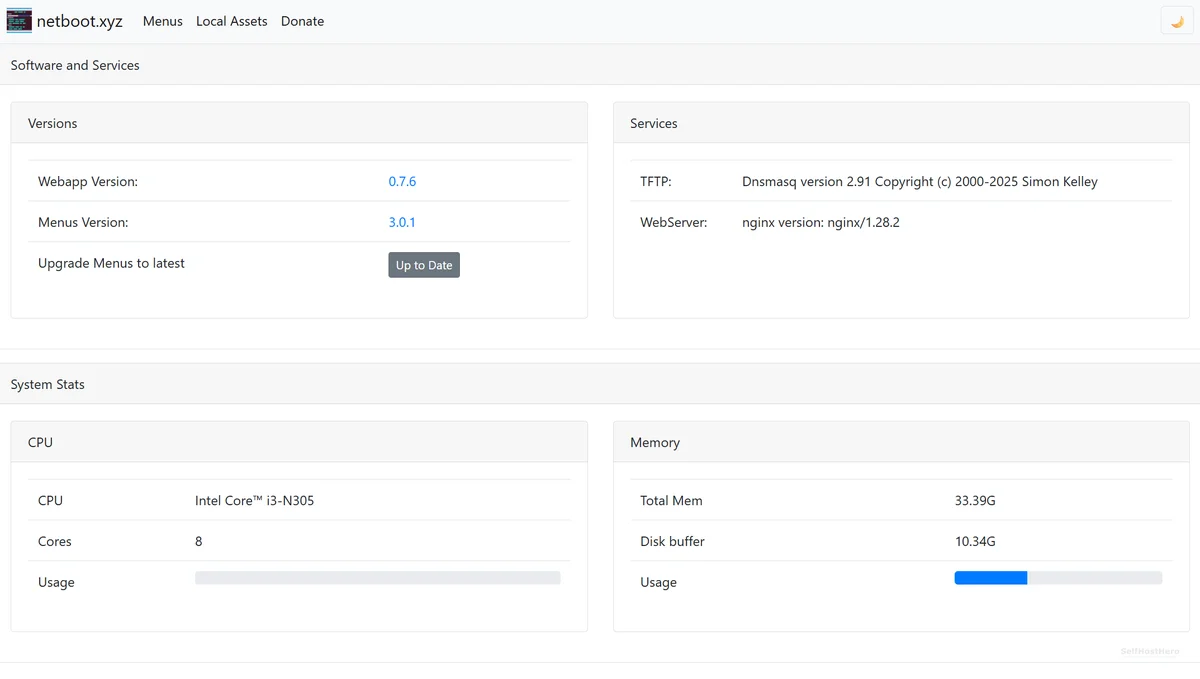
Open http://[HOST-IP]:3005 in a browser. Confirm the Netboot.xyz dashboard loads and shows the menu editor.
Physical PXE Boot Test
- Connect a test machine (laptop or spare PC) via Ethernet to the same LAN
- Power on and enter BIOS/UEFI boot menu
- Select Network Boot / PXE Boot
- Expected result: The Netboot.xyz boot menu appears within seconds
The Ugly Truth — Quirks and Honest Limitations
Hard Blockers
- ISP modem/router: If your router does not expose DHCP Option 66/67 fields, this entire setup is non-functional. No workaround exists without replacing the router.
- No auto-discovery of ISOs: The
/assetsdirectory is not scanned automatically. Every custom ISO requires manual iPXE scripting. This is by design, not a bug.
Operational Gotchas
- Spaces in directory or file names silently break URL-based ISO loading
- UEFI vs. Legacy BIOS requires different bootfile names (
netboot.xyz.efivs.netboot.xyz.kpxe) - Port 69/UDP (TFTP) must not be blocked by host firewall rules
Troubleshooting Common Errors
Error — “no matching manifest for linux/amd64”
# Replace deprecated image reference
image: ghcr.io/netbootxyz/netbootxyz:latest
# Remove any reference to lscr.io/linuxserver/netbootxyz
Error — “driver failed programming external connectivity” (Portainer)
Port collision on 3000 or 8080 with an existing container.
ports:
  - 3005:3000   # Change left-side port only
  - 8088:80     # Change left-side port only
  - 69:69/udp   # Do not change — TFTP standard port
Error — Local ISO Fails to Load
- No spaces in directory path (
OperatingSystems✓ /Operating Systems✗) - No spaces in ISO filename
- iPXE script URL matches exact path under
/assets - Port 8088 (mapped to container port 80) is accessible from the booting client
Conclusion & Next Steps
What You Have Built — Completion Checklist
- Netboot.xyz running successfully via Docker
- Port conflicts and deprecated images resolved
- OPNsense delivering PXE boot files via DHCP Options 66/67
- Physical PXE boot test passed on a client machine
Next Steps — Level Up Your Setup
- Immediate next action: Write custom
custom.ipxescripts in the dashboard to map your local ISO library to named boot menu entries - Advanced: Explore caching Netboot.xyz assets with Lancache/Monolithic
- Advanced: Build OS-specific iPXE menu files modeled on community repositories
- Future guide teaser: Automating OS deployments with Netboot.xyz + Ansible — zero-touch provisioning for your homelab
For more on running Docker containers in your homelab, check out our guide on Docker + Portainer setup.