🎧 Listen to the 60-Second Audio Recap:
Why Pay Monthly for Music You Don’t Own?
Every month you pay Spotify or Apple Music, you are renting access to a catalog you will never own. Licensing deals expire. Albums vanish overnight with zero warning. Your listening behavior — every skip, every repeat, every late-night playlist — is a data product packaged and sold to advertisers. You are not the customer. You are the inventory.
Navidrome is the direct answer to that problem. It is an open-source music server written in Go: fast, lean, and runs on hardware that would make Plex or Jellyfin struggle. It exposes a Subsonic-compatible API, so every major mobile music app already speaks its language out of the box.
Here is what you actually get by running Navidrome yourself:
- 100% local collection — no streaming dependency, no license expiry
- Zero tracking of your listening behavior
- Lossless FLAC quality, always, even completely offline
- No subscription fees, ever
The number one question on r/selfhosted is “I just installed Proxmox — what is the best way to run Navidrome?” This guide answers that with two complete deployment paths: one for beginners using Portainer, and one for advanced users leveraging unprivileged LXC containers with ZFS mount points.
Prerequisites and Minimal Hardware
What You Need Before You Start
Navidrome’s Go binary is why this works on hardware that would choke a heavier media server. Set your expectations correctly: this is not Plex. It does not transcode video, it does not need a GPU, and it does not need 8GB of RAM.
Software requirements:
- A running Docker Engine inside a Proxmox LXC or VM. If you have not set this up yet, follow our guide on building Docker and Portainer on a Proxmox LXC first.
- Portainer installed (required for the Newbie route)
- Proxmox host shell access with the
pctcommand available (required for the Pro route)
Hardware minimums:
- CPU: 1 core is genuinely sufficient
- RAM: 512MB is enough — this is not a typo
- Storage: Fast NVMe for the
/datadirectory (the SQLite database); any spinning HDD or NAS share works fine for/music
Your music collection:
- MP3 or FLAC files stored on the host machine or a network share
Method 1 — The Quick Start (Newbie Route via Portainer)
This section targets users who have Portainer running and want the fastest possible path to a working music server. No command line required.
Step 1 — Open Portainer and Create a New Stack
Log into your Portainer instance and navigate to Stacks in the left sidebar. Click Add Stack. In the Name field, type navidrome. You will paste your entire configuration as a single YAML block in the next step.
Step 2 — Paste the Docker Compose YAML
Before you paste anything, understand what the key environment variables actually do:
ND_SCANSCHEDULE— how often Navidrome automatically checks your music folder for new or changed files.1hmeans once per hour.ND_LOGLEVEL— the verbosity of the container logs. Keep this atinfounless you are actively debugging a problem.ND_SESSIONTIMEOUT— how long before an inactive browser session is logged out automatically.24his a sensible default for home use.
Now paste this YAML into the Portainer stack editor:
version: "3.8"
services:
  navidrome:
    image: deluan/navidrome:latest
    container_name: navidrome
    ports:
      - "4533:4533"
    environment:
      ND_SCANSCHEDULE: 1h
      ND_LOGLEVEL: info
      ND_SESSIONTIMEOUT: 24h
    volumes:
      - /pad/naar/jouw/appdata/navidrome:/data
      - /pad/naar/jouw/muziek:/music:ro
restart: unless-stopped/pad/naar/jouw/appdata/navidrome and /pad/naar/jouw/muziek with your actual host paths before deploying. The :ro flag on the music volume is non-negotiable. It mounts your music directory as read-only, which means Navidrome can scan and stream your files but can never modify, overwrite, or delete them.Step 3 — Deploy and Verify the Container is Running
Click Deploy the stack at the bottom of the page. Watch the Portainer log output in the panel that appears. The image pull and container start process takes 10 to 15 seconds on a normal connection.
When complete, navigate back to your Stacks list. You will see the navidrome stack with a green “running” status indicator next to the container. If the status shows “stopped” or “error,” check the container logs directly in Portainer for the specific error message before proceeding.
Method 2 — The Pro Setup (Advanced Route: Unprivileged LXC + ZFS Mount Point)
This section targets advanced Proxmox users. It directly addresses one of the most common questions on r/selfhosted: “Navidrome bind mount in Proxmox — help needed.” If you have hit permission errors trying to pass storage into an LXC container, this is the correct architecture.
Architecture Overview — Why This Setup Works
The design principle here is clean separation of concerns. Your music lives on a ZFS pool managed directly by the Proxmox host. That pool is passed into an unprivileged LXC container via a Mount Point configuration (mp0). Docker runs inside that LXC container. The application never touches the storage layer directly.
This means your music files are protected at two levels: the ZFS pool’s own integrity guarantees, and the read-only mount enforced by Docker Compose. Even if the container is compromised or misconfigured, it cannot write to your music library.
The data flow looks like this:
[ZFS Pool: /hdd-pool/Opslag] → [LXC mp0: /mnt/opslag] → [Docker volume: /music:ro]If you want to understand the ZFS layer in more depth, our guide on building an ultra-efficient DIY NAS on Proxmox with native ZFS covers the full storage architecture.
Step 1 — Add the ZFS Mount Point to the LXC Container
Run this command on the Proxmox host shell, not inside the LXC. Replace 101 with your actual LXC container ID. You can find your container ID in the Proxmox web UI left sidebar.
pct set 101 -mp0 /hdd-pool/Opslag,mp=/mnt/opslagStep 2 — Verify the Mount Point Inside the LXC
Shell into your LXC container and confirm the mount is visible and readable:
# Run inside the LXC container
ls /mnt/opslag/Media/Music
Expected output: your music folder structure, showing artist or album directories. If the output is empty or returns “permission denied,” stop here and resolve the permission issue before proceeding. Deploying Navidrome on top of a broken mount will only create a harder-to-diagnose problem later.
Step 3 — Deploy the Production-Grade Docker Compose Stack
This YAML differs from the Newbie version in one important way: the /music volume path now points to the absolute path inside the LXC where your ZFS pool is mounted (/mnt/opslag/Media/Music), as specified by the mp0 mount point configured in Step 1. The :ro flag is explicitly set on the music volume so Navidrome can scan and stream files but can never modify ID3 tags, overwrite, or delete them.
version: "3.8"
services:
  navidrome:
    image: deluan/navidrome:latest
    container_name: navidrome
    ports:
      - "4533:4533"
    environment:
      ND_SCANSCHEDULE: 1h
      ND_LOGLEVEL: info
      ND_SESSIONTIMEOUT: 24h
    volumes:
      - /pad/naar/jouw/appdata/navidrome:/data
      - /mnt/opslag/Media/Music:/music:ro
restart: unless-stopped/data volume (the Navidrome SQLite database) to fast NVMe-backed storage on your LXC. This is what gives you instant search results even across a library of 50,000 tracks. Your music files on the ZFS HDD pool do not need to be fast — only the database does.Deploy this stack using either Portainer (paste into a new stack) or directly from the LXC shell with docker compose up -d from the directory containing your compose.yaml file.
Step 4 — Updating Navidrome in This Setup
This directly addresses the Reddit question “Updating Navidrome deployed as an LXC container.” Because we are using Docker Compose, the entire update process is two commands. Run these inside the LXC container from the directory containing your Compose file:
docker compose pull
docker compose up -d
Docker pulls the new image, stops the old container, and starts a fresh one with the updated image. Your database in /data and your music in /music are untouched because they live on mounted volumes outside the container. The whole process takes under 30 seconds.
Configuration and Validation — Confirming Everything Works
First Boot — Create Your Admin Account
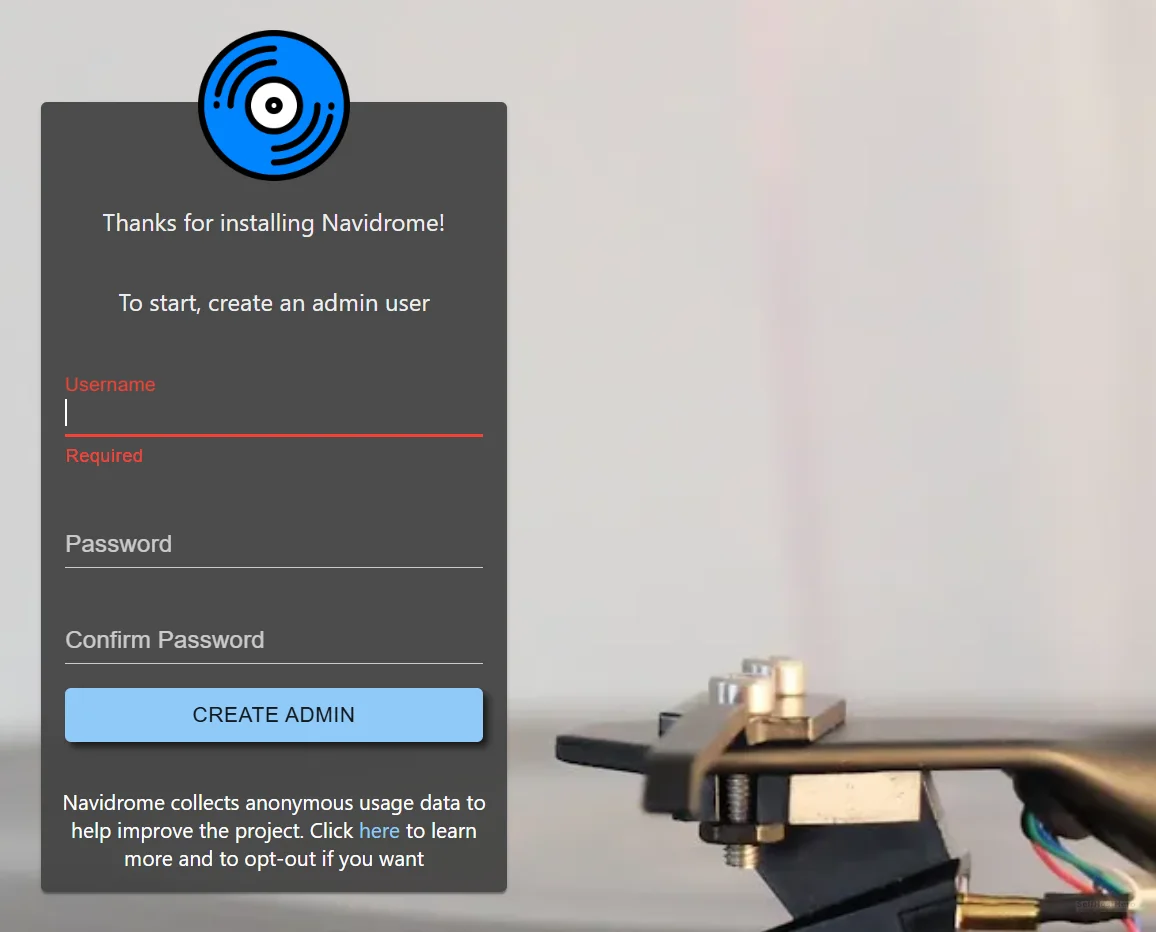
Open a browser and navigate to http://<your-server-ip>:4533. You will be greeted by the Navidrome first-run setup screen.
Fill in a username and a strong password. Click Create Account. You are now inside the Navidrome dashboard.
Trigger Your First Library Scan
After login, Navidrome will automatically begin a Quick Scan of your mounted music directory. For small libraries under a few thousand tracks, albums will start appearing within seconds. For large libraries of 20,000 tracks or more, allow a few minutes for the initial scan to complete. You can watch progress in the Navidrome admin panel under Settings.
Connect a Mobile App via the Subsonic API
Navidrome speaks the Subsonic API protocol natively. A large ecosystem of mobile and desktop clients work with it immediately, with no additional configuration on the server side.
Recommended clients:
- Android: Symfonium (paid, best-in-class UI and offline sync)
- iOS: play:Sub
- Desktop: Sonixd (cross-platform Electron app)
In every app, the connection fields are the same:
- Server URL:
http://<server-ip>:4533 - Username and Password: your Navidrome credentials
Once connected, play one track. Confirm audio output. If it plays, your setup is complete and working end-to-end.
The Ugly Truth — Honest Quirks You Need to Know
You Will Miss the Algorithm (And That Is the Trade-Off)
There is no Discover Weekly. There is no “Made For You” playlist. There is no radio mode that learns your taste over six months and surfaces an obscure artist you would have loved. Music discovery becomes a manual, intentional act. You will need to actively seek out new music, download it, tag it, and add it to your library yourself.
For many people, this is actually a feature. Intentional listening is a different experience than passive algorithmic consumption. But be honest with yourself about which camp you are in before you cancel your Spotify subscription. Navidrome is a capable player. It is not a discovery engine.
Your Library Is Only as Good as Your Tags
Navidrome is entirely dependent on ID3 metadata embedded in your audio files. It does not scrape the internet for missing information. It reads what is in the file and displays it. Bad tags produce a broken library experience: albums split into individual tracks, the same artist appearing under five slightly different name spellings, album art missing for half your collection.
Album Artist tag. This single field is the most common cause of fragmented album views in Navidrome. Navidrome groups tracks into albums using Album Artist, not Artist. If that tag is missing or inconsistent, your albums will shatter into individual track entries.Troubleshooting Common Errors
Problem — Library Is Empty After Startup
You deployed the container, the scan ran, and the library shows nothing. The most common cause is a file permission mismatch. The Navidrome Docker container runs as UID 1000 by default. If the music directory on the host is owned by root or another user, the container cannot read it.
Fix the permissions on the host:
chmod -R 755 /pad/naar/jouw/muziekAfter running this command, go back into the Navidrome admin panel and trigger a manual rescan. Navigate to Settings and click Rescan All. Your library should begin populating immediately.
Problem — Albums Are Fragmented (Every Track Shows as a Separate Album)
You can see your music, but instead of albums you see hundreds of individual entries, one per track. This is almost always caused by a missing or inconsistent Album Artist tag in your MP3 metadata.
Navidrome uses the Album Artist tag (not the Artist tag) to group tracks into a single album entry. If that tag is blank or varies between tracks on the same album, Navidrome treats each track as belonging to a different album.
Open MusicBrainz Picard, load the affected files, let it identify and re-tag them, and save. Then return to Navidrome and trigger a full rescan via Admin and Rescan All. The fragmented entries will consolidate into proper albums.
Problem — Mount Point Visible in Proxmox But Empty Inside the LXC
You confirmed the ZFS pool has files on the Proxmox host, you added the mp0 mount point, but inside the LXC the directory is empty or returns “permission denied.” This is a UID mapping issue specific to unprivileged LXC containers.
First, check the ownership of the source directory on the Proxmox host:
# On Proxmox host — check ownership of the source directory
ls -la /hdd-pool/Opslag
If the directory is owned by root (UID 0 on the host), it maps to UID 100000 inside the unprivileged LXC, which no process inside the container can access by default. You have two options: change the ownership of the source directory on the host to match the mapped UID, or add an explicit UID mapping line to the LXC configuration file at /etc/pve/lxc/101.conf. The correct mapping line to add is lxc.idmap: u 0 100000 65536 combined with a matching GID map. After editing the config file, restart the LXC container for the changes to take effect.
Conclusion and Next Steps
Completion Checklist
- [x] Navidrome deployed via Docker Compose
- [x] Music volume mounted read-only (
:ro) - [x] Admin account created on first boot
- [x] First library scan completed and albums are visible
- [x] Subsonic-compatible mobile app connected and tested with audio playback confirmed
What Comes Next — Automating Your Music Pipeline
You now have the player. What you do not yet have is the pipeline. Navidrome plays your music, but it does not find or download new music for you. That is a separate problem with a clean solution.
The logical next step in this series is setting up two additional services:
- Lidarr — automated music search and download management. You tell it which artists you follow, and it monitors for new releases automatically.
- Prowlarr — indexer management that feeds Lidarr with sources to search.
Together, Lidarr and Prowlarr handle the discovery and acquisition side of the problem. Navidrome handles the playback side. The combination replaces Spotify completely, on your hardware, on your terms, with no monthly fee and no algorithm deciding what you should listen to next.
Navidrome is the endpoint. Lidarr is the pipeline. Build both, and you have a self-hosted music stack that is genuinely better than any streaming service for the music you actually care about.