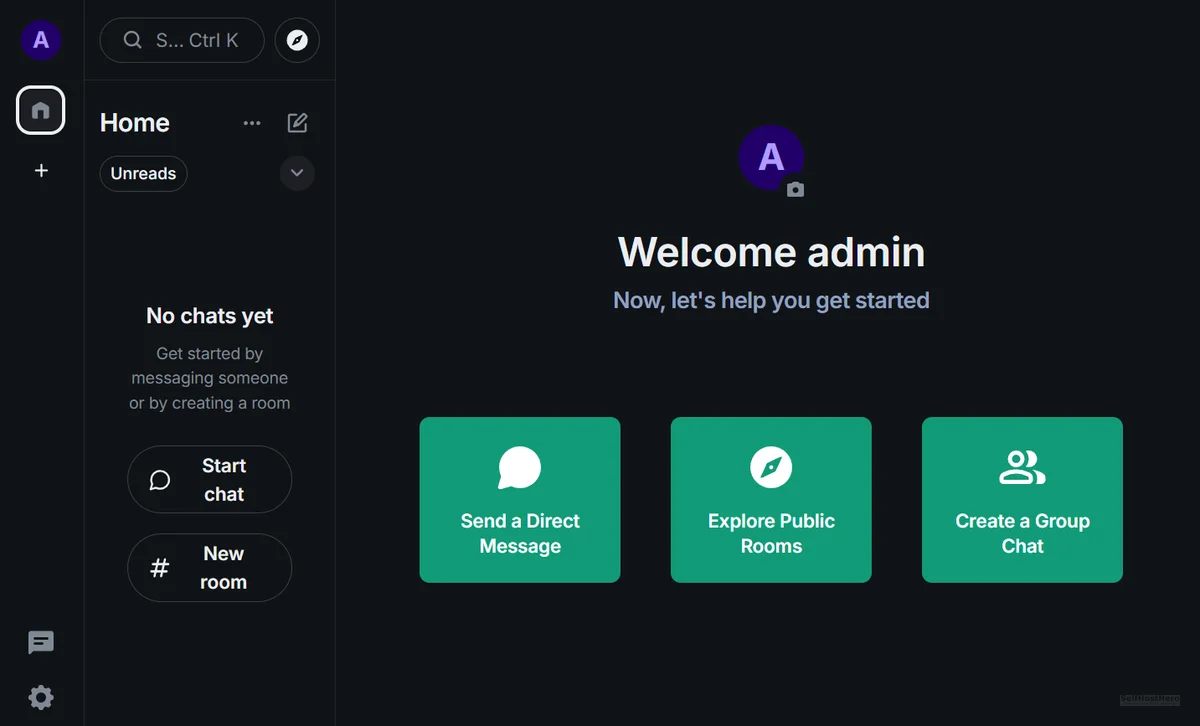
This is Part 2 of the Matrix Synapse Self-Hosting Series. In Part 1, we built a working Synapse instance on Docker. Now we make it production-ready: migrate the database from SQLite to PostgreSQL 15 and activate .well-known client discovery so the Element app connects automatically.
Why PostgreSQL
🎧 Listen to the 60-Second Audio Recap:
Your Data, Your Rules, Your Database
SQLite is a training wheel. It works fine for a single developer testing a new service, but it is not suitable once real users start joining rooms. Past roughly 50 concurrent users, or when you enable federation, SQLite becomes a hard bottleneck: it serializes writes, struggles with concurrent reads, and produces noticeable lag in busy rooms. This is not speculation. It is the most common complaint in the r/matrixdotorg community, where the “Matrix Server Operator Guide for 2026” thread is filled with operators hitting exactly this wall.
PostgreSQL solves this. Every message, every piece of metadata, every media reference stays inside a database container you physically control. WhatsApp and Discord store your social graph on their servers. This stack stores it on your hardware, with no third-party telemetry and no cloud dependency.
This guide migrates a running Synapse instance from SQLite to PostgreSQL 15 and activates .well-known client discovery for seamless Element app login.
Prerequisites & Minimal Hardware
What You Need Before Running a Single Command
- Docker Engine installed and running
- Docker Compose v2+ installed
- A server with 2+ CPU cores and a minimum of 2GB RAM. This is not a conservative estimate. PostgreSQL and Synapse together idle at 800MB to 1.2GB. 2GB is the actual floor.
- A completed Part 1 installation of Matrix Synapse (the single-container SQLite setup)
- A domain routed through a Cloudflare Tunnel. No open router ports are required.
- Access to Portainer or direct terminal access to your Docker host
What This Guide Does NOT Cover
- Initial Synapse installation from scratch — that is Part 1 of this series
- Cloudflare Tunnel configuration — see our dedicated Cloudflare Zero Trust guide
- Matrix bridge setup — that is Part 3, covered in the Next Steps section below
Method 1 — The Quick Start (Newbie Nora Route)
You Are in the Wrong Place — And That Is Okay
This section exists to prevent beginners from breaking a working installation. If you do not have a running Synapse instance from Part 1, stop here. Complete that guide first, then come back. SQLite is entirely sufficient for personal use. If you are running a private server for one household or five or fewer users, you do not need PostgreSQL today. The migration becomes necessary when room sizes grow, when you enable federation, or when your concurrent user count starts climbing.
Method 2 — The Pro Setup (Pro Paul Route): SQLite to PostgreSQL Migration
This migration runs in four steps. Each step builds on the previous one. Do not skip steps and do not reorder them.
Step 1 — Modify homeserver.yaml: Replace the Database Block
Open your Synapse configuration file. On this stack, it lives at /mnt/snelle_data/App_Data/synapse/homeserver.yaml. Find the existing database: block and replace it entirely with the configuration below. Also add the public_baseurl and serve_client_well_known lines directly below the database block.
Before you save anything: YAML is unforgiving about indentation. One incorrect space does not produce a helpful error — it produces a cryptic psycopg2.OperationalError that looks like a network failure but is actually a config parse failure. Paste your edited block into an online YAML linter before saving the file.
database:
  name: psycopg2
  args:
    user: synapse
    password: KiesEenHeelSterkWachtwoord123!
    database: synapse
    host: db
    cp_min: 5
    cp_max: 10

public_baseurl: "https://chat.jouwdomein.nl/"
serve_client_well_known: true
public_baseurl and serve_client_well_known: true are added in this same edit pass. Do not skip those two lines. They activate client discovery, which is validated in Step 4.
host: db value must exactly match the service name defined in your Docker Compose file. A mismatch here is the number one cause of psycopg2.OperationalError: could not translate host name. The value is case-sensitive.Step 2 — Physically Delete the SQLite Database File
This step surprises people. You would expect that pointing Synapse at a PostgreSQL database in the config file would be sufficient. It is not. Synapse has a silent fallback behavior: if it finds any .db file on disk, it will use that file and completely ignore your PostgreSQL configuration. It produces zero warning in the logs. You will think PostgreSQL is running when SQLite is actually handling all writes.
This is a genuine developer UX failure. Physical file deletion is the only solution.
rm /mnt/snelle_data/App_Data/synapse/homeserver.db
After deleting, verify that no .db files remain anywhere in the data directory:
ls -R /mnt/snelle_data/App_Data/synapse/
The expected output contains no .db files. If any .db file appears in that listing, Synapse will ignore PostgreSQL. Delete every such file before proceeding.
Step 3 — Deploy the Multi-Container Stack in Portainer
Navigate to Portainer, open the Stacks section, and remove or replace your existing single-container Synapse stack. Paste the following complete Docker Compose definition as your new stack.
version: "3.9"
services:
  synapse:
    image: matrixdotorg/synapse:latest
    container_name: synapse
    restart: unless-stopped
    ports:
      - 8008:8008
    depends_on:
      - db
    volumes:
      - /mnt/snelle_data/App_Data/synapse:/data

  db:
    image: postgres:15-alpine
    container_name: synapse_db
    restart: unless-stopped
    environment:
      - POSTGRES_USER=synapse
      - POSTGRES_PASSWORD=KiesEenHeelSterkWachtwoord123!
      - POSTGRES_DB=synapse
      - POSTGRES_INITDB_ARGS=--encoding=UTF-8 --lc-collate=C --lc-ctype=C
    volumes:
      - /mnt/snelle_data/App_Data/synapse_db:/var/lib/postgresql/data
POSTGRES_INITDB_ARGS line must be present exactly as written. Synapse requires UTF-8 encoding with C locale. Omitting this line causes schema creation failures during first startup, and the error messages are not obvious about the root cause.Two things to note in this Compose file. First, the depends_on: db directive ensures PostgreSQL is initialized before Synapse attempts its first connection. Second, the db service name in the Compose file is what host: db in your homeserver.yaml resolves to. They must match.
Deploy the stack. Then open the container logs for both synapse and synapse_db in Portainer and watch for startup errors before moving to Step 4.
Step 4 — Register a New Admin User
Once both containers are running cleanly, register your admin account against the new PostgreSQL backend. Open the console of the synapse container via Portainer (Containers → select synapse → Console), or run this from your terminal:
docker exec -it synapse bash
Then execute the registration command:
register_new_matrix_user -c /data/homeserver.yaml http://localhost:8008
The command will prompt you for a username, a password, and whether this account should be an admin. Answer y to the admin question.
.db fallback file still exists somewhere in the volume. Synapse is writing to SQLite, not PostgreSQL. See Troubleshooting Error 1 below.Configuration & Validation — Proving It Actually Works
Validation Check 1 — Confirm PostgreSQL Tables Were Built
Open the console of the synapse_db container in Portainer. Connect to the database with the following command:
psql -U synapse -d synapse
Once inside the PostgreSQL prompt, list all tables:
\dt
Expected result: A list of 300+ tables. This confirms Synapse successfully connected to PostgreSQL on first startup and built its full schema.
Failure result: Did not find any relations. This means Synapse never connected to this PostgreSQL instance. See Troubleshooting Error 2 below.
Validation Check 2 — Confirm Client Discovery (.well-known) Is Active
Open a browser and navigate to this URL, substituting your actual domain:
https://chat.jouwdomein.nl/.well-known/matrix/client
Expected result: A JSON response object containing your homeserver URL.
Failure result: A 404 page. This means either serve_client_well_known: true was not saved correctly in homeserver.yaml, or the Synapse container was not restarted after the config change was made.
The Ugly Truth — Quirks & Honest Limitations
What the Official Docs Do Not Warn You About
Here is what you are actually going to encounter, not just what the happy path looks like.
Quirk 1 — YAML is merciless. A single incorrect indentation level in homeserver.yaml produces a psycopg2.OperationalError that looks exactly like a network connectivity error. It is not. It is a config parse failure. The container crashes, the logs are misleading, and the fix is simply correcting the indentation. Always validate your YAML before deploying.
Quirk 2 — The silent SQLite fallback. Synapse’s behavior of silently ignoring PostgreSQL configuration when a .db file exists on disk is a genuine developer UX failure. There is no warning in the logs. There is no error message. Synapse simply uses the SQLite file and behaves as if everything is fine. Physical deletion of the file is the only reliable solution. This is not elegant, but it is the reality of the current codebase.
Quirk 3 — Memory overhead is real. PostgreSQL 15 and Synapse together will consume between 800MB and 1.2GB of RAM at idle on a fresh install. The 2GB RAM minimum stated in the prerequisites is not a conservative buffer. It is the actual floor. Running this stack on a 1GB VPS will result in OOM kills and container restarts under any real load.
Multiple threads on r/matrixdotorg describe a “server running but features broken” state. The majority of those cases trace back to either the SQLite fallback issue or a missing .well-known endpoint. Both are solved in this guide.
Troubleshooting Common Errors
Error 1 — “User ID Already Taken” on a Fresh PostgreSQL Database
Symptom: The registration command returns a user ID conflict even though your PostgreSQL database shows empty or no tables.
Root cause: A hidden homeserver.db or residual .db file exists in the /data volume. Synapse is writing to SQLite, not PostgreSQL. The registration succeeded against the SQLite file, which is why the conflict exists.
Fix:
# Stop the synapse container first via Portainer, or run:
docker stop synapse

# Navigate to the data directory and hard-delete all .db files:
cd /mnt/snelle_data/App_Data/synapse/
rm *.db*

# Restart the container:
docker start synapse
After restarting, repeat Validation Check 1 before attempting registration again.
Error 2 — “Did Not Find Any Relations” When Running \dt in PostgreSQL
Symptom: psql connects to the database successfully, but \dt returns no tables.
Root cause: Synapse never connected to this PostgreSQL instance. It either fell back to SQLite on startup or failed to start entirely.
Fix checklist:
- Confirm that
host: dbinhomeserver.yamlexactly matches the service name defined in your Docker Compose file. This comparison is case-sensitive. - Confirm that no
.dbfiles exist anywhere in the Synapse data volume. - Check the Synapse container startup logs for errors:
docker logs synapse --tail 50
Error 3 — psycopg2.OperationalError: Could Not Translate Host Name
Symptom: The Synapse container crashes on startup with a database connection error referencing host name resolution.
Root cause: Either a YAML indentation error in homeserver.yaml is causing the host: value to be misread, or the service name in host: db does not match the actual service name defined in the Docker Compose file.
Fix: This error is caused by a mismatch between the host: db value in your homeserver.yaml and the service name in your docker-compose.yml. Copy the entire database block from your YAML file and paste it into an online YAML linter to fix any hidden indentation errors. Confirm that your Compose service name matches the host value exactly, character for character.
Conclusion & Next Steps
What You Have Actually Built
Run through this checklist before closing this guide. Every item should be confirmed.
- [x] PostgreSQL 15 running as a dedicated container with persistent volume storage at
/mnt/snelle_data/App_Data/synapse_db - [x] Synapse fully migrated off SQLite — the write serialization bottleneck is eliminated
- [x]
.well-knownclient discovery active and returning valid JSON — Element apps auto-detect your server - [x] Admin user registered and verified against the PostgreSQL backend
- [x] Stack is restart-safe, Portainer-managed, and running behind Cloudflare Tunnel with no exposed router ports
You now have a Matrix homeserver capable of handling federation, large rooms, and the message volume that real-world usage generates.
What Comes Next — Part 3: Matrix Bridges
The next step is deploying Matrix bridge containers as additional services inside this same Docker Compose stack. Bridges like mautrix-whatsapp, mautrix-telegram, and mautrix-discord allow you to consolidate existing chat platforms into a single Element interface, without leaving those platforms or asking your contacts to switch. Your PostgreSQL backend is capable of handling the additional message volume that active bridges generate. A SQLite backend is not.
Part 3 of this series covers the full bridge deployment process, including application service registration and double-puppeting configuration.
If you are building out the broader self-hosted infrastructure this server runs on, our guide on Self-Hosted Google Drive with Nextcloud on Proxmox covers the same split-storage architecture pattern used here, applied to file storage.